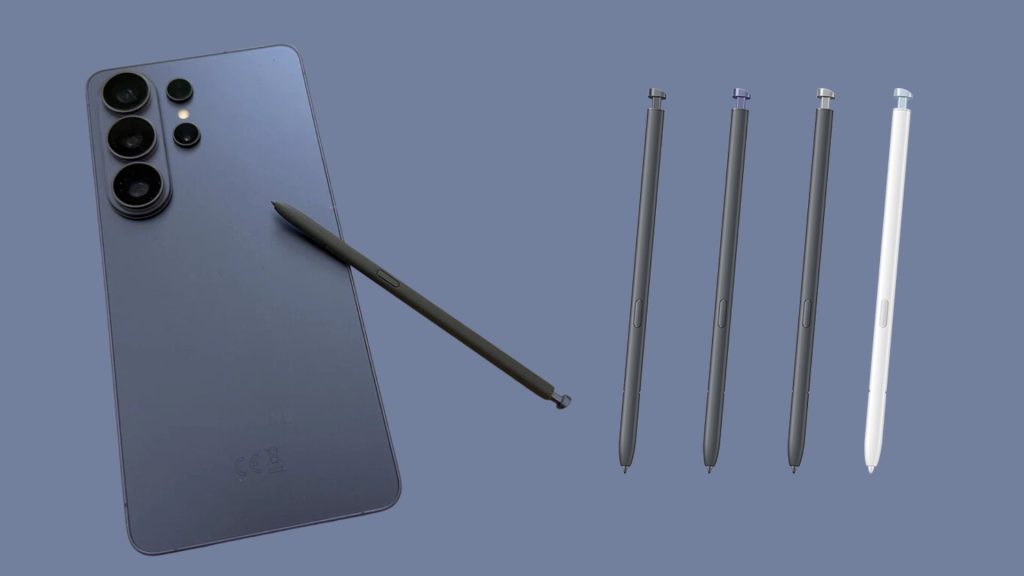
Ask most Galaxy Ultra owners how often they actually pull out the S Pen, and you’ll get a shrug. It’s the accessory everyone remembers exists right up until they forget it’s there. But spend a little time digging through what the stylus can do on the Galaxy S26 Ultra running One UI 8.5, and a different picture emerges: this is less a gimmick and more a shortcut for anyone who wants to get things done without unlocking a keyboard’s worth of taps first. These are the S Pen features actually worth building into a daily routine.
Samsung Notes: still the S Pen’s natural home
If there’s one app where the S Pen earns its keep, it’s Samsung Notes. Treat it like an actual notepad and the pen like a regular ballpoint, and the pairing just works — perfect for jotting down a thought before it slips away or capturing something you’ll need later.
One feature worth turning on specifically is the built-in Math Solver, tucked inside the three-dot menu at the top right of any note. Once enabled, the Galaxy can solve equations as you write them by hand — just add an equals sign (=) after the problem and the answer appears automatically.
Reading Mode adds another layer: switch a note into this view and the S Pen can tap directly on phone numbers, email addresses, and links inside your handwritten or typed content to act on them immediately.
And for genuinely quick capture, there’s Screen Off Memo (toggle it on under Settings > Advanced features > S Pen if it isn’t already active). Pull the pen out with its button held down while the screen is off, and you can start writing without ever unlocking the phone.
Turning PDFs into a five-minute task
Anyone who’s dreaded a PDF form that needs signing or filling out will appreciate this one. Open the file in Samsung Notes, and the S Pen turns it into something closer to paperwork done at a desk: read through it, fill in the blanks, sign where needed. Turn on S Pen to text, and handwritten entries get automatically cleaned up and converted into the document’s existing font, so the finished file doesn’t look like it was filled out in a hurry.
A calendar that takes handwritten notes
The calendar app is an easy one to overlook, but the S Pen works there too. Tap any date and start writing by hand — the app automatically reflows your notes into its standard font, so scheduling reminders or quick to-dos next to an appointment doesn’t require switching to a keyboard at all.
Turn the S Pen into a magnifying glass
Installing the free Pentastic module from Good Lock (available in the Galaxy Store) unlocks extra S Pen functions, and the standout is Magnify. It does exactly what it sounds like: point the pen at any part of the screen to zoom in on it. Add the feature to the S Pen menu through Pentastic — the small pen-and-circle icon that appears on the right edge of the screen when the stylus is out — and you can adjust the zoom level between 150% (the default), 200%, 250%, and 300%.
Air Command: your shortcut list, your rules
Pull the S Pen from its slot and a small circular menu pops up on the right edge of the screen. That’s Air Command, and it’s built to give quick access to whichever S Pen features get used most.
It’s fully customizable — choose between a grid layout with icons and labels or a slimmer column of icons only, and add up to 10 functions to the menu. Install Pentastic and the list of available shortcuts grows even further, pulling in features that aren’t available out of the box.
There’s also a toggle for whether the Air Command icon stays visible any time the pen is out, or only appears after pressing the S Pen’s button.
A safety net for when you leave it behind
The S Pen is small enough to forget on a desk or a coffee table, especially with regular use. Samsung has a fix for that too: inside the pen’s settings menu, there’s an option that triggers an on-screen alert asking whether you’ve actually put the S Pen away — or left it behind by mistake.
The bottom line
None of these tricks require a Note-series flagship or advanced technical know-how — just a few minutes in the settings menu and a willingness to actually use the pen for something other than the occasional doodle. On the Galaxy S26 Ultra, that small investment of time is what turns the S Pen from a box-ticking spec into one of the phone’s most practical tools.